Audience: Sponsor & CRO users
Purpose: Explain how to quickly identify whether a site has active users, and what each status icon means in Insights.
TABLE OF CONTENTS
- Where to go to see if a site has active users?
- What do the site user status icons mean?
- What should I do if a site has no active users?
- Still need help?
Where to go to see if a site has active users?
You can see whether sites have active users by doing the following:
- Go to Insights
- Select My candidates & sites
- Review the site list and the status icon shown for each site
What do the site user status icons mean?
In Insights > My candidates & sites, each site will show one of the following user status indicators:
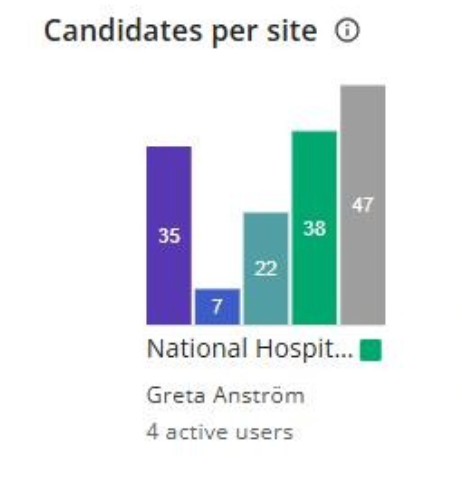
1) Has active users
This indicates the site has at least one active user account and should be able to access Honey and review referrals as expected.
2) Red triangle with exclamation mark
Meaning: The site has no active users, and there are referrals associated with the site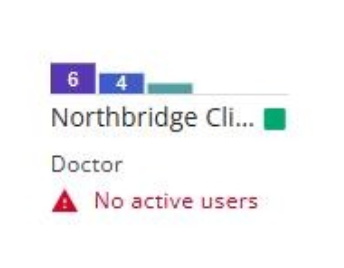
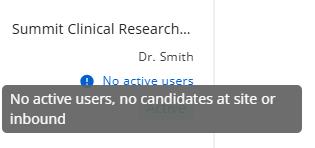
3) Blue circle with exclamation mark
Meaning: The site has no active users, but no referrals have been sent to the site yet.
What should I do if a site has no active users?
If a site shows either the red triangle or blue circle icon, it means there are currently no active candidates associated with that site.
What to do next depends on the icon shown:
- Red triangle with exclamation mark
Referrals have already been sent to the site, but there are currently no active candidates associated with it. Follow up with the site to confirm candidate activity and ensure referrals are being reviewed appropriately. - Blue circle with exclamation mark
The site currently has no active candidates, and no referrals have been sent yet. No immediate action may be required, but you can monitor the site for future candidate activity.
Note:
Site user status indicators help you quickly identify which sites may need attention based on candidate activity and referral status.
Still need help?
If you are running into any issues, please contact Trialbee Support at support@trialbee.com and include:
- A description of the issue
- Your study ID
- Site name(s) affected
Related Articles
How to invite a new user in honey
How to determine a user’s role and access
Site and user activation (Sponsor & CRO admins)
Was this article helpful?
That’s Great!
Thank you for your feedback
Sorry! We couldn't be helpful
Thank you for your feedback
Feedback sent
We appreciate your effort and will try to fix the article